
How to Use Audiomack on PC for Work and Study
Download Audiomack App for Free
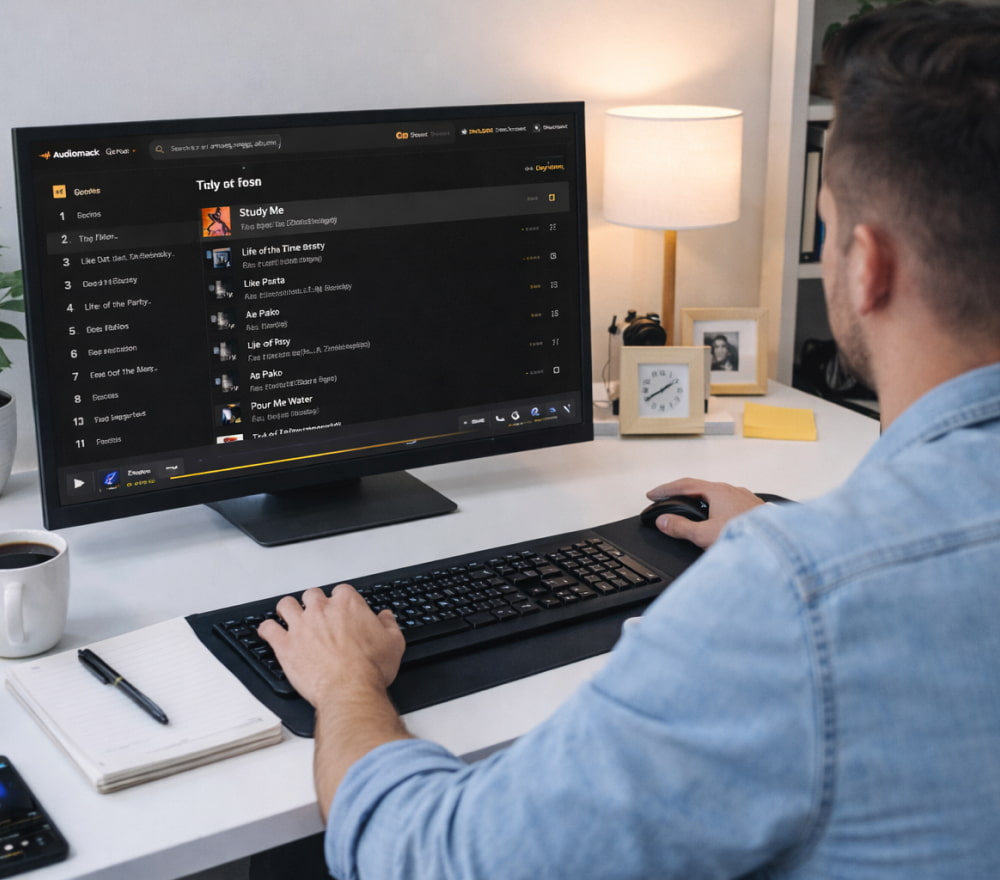
Install NowStreaming music on a desktop can be surprisingly convenient: bigger speakers, easier multitasking, and a browser that keeps your queue ready while you write, study, or game. If you enjoy discovering new tracks, exploring trending playlists, or following emerging artists, you can set up a comfortable listening workflow on a computer without sacrificing the experience you’re used to on mobile. This guide explains practical ways to enjoy Audiomack on a PC, how to choose the best setup for your needs, and what to check if something doesn’t work as expected.
Why Listening on a Computer Feels Different
PC listening is all about control. You can keep music in one window while managing tabs, chat apps, and files in another. A full keyboard makes searching faster, and larger screens make it easier to browse playlists, albums, and artist pages.
- Better multitasking with multiple windows
- Faster typing for search and navigation
- Easier audio routing to speakers, DACs, or Bluetooth devices
- Convenient for long sessions like studying or working
If your day involves spreadsheets, writing, or creative work, desktop listening can feel like a “set it and forget it” soundtrack that stays out of your way.
Best Ways to Use Audiomack on PC
There are a few common approaches, and the right one depends on your computer, preferences, and how you like to listen.
- Use a Web Browser. This is often the simplest option. A modern browser (Chrome, Edge, Firefox) usually provides stable playback, easy sign-in, and smooth navigation. It’s great if you want to jump in quickly without changing system settings.
- Use an Android Emulator. Some users prefer running mobile apps on desktop via an emulator, especially if they’re accustomed to the phone-style interface. This method may require extra setup, but it can feel familiar if you primarily use Audiomack on mobile.
- Use a PC-Friendly Workflow. Even without a dedicated desktop client, you can enhance the experience by pinning tabs, enabling media keys, or using system audio controls. This approach is lightweight and works well for everyday listening.
Quick Comparison Table
| Method | Best For | Pros | Trade-Offs |
|---|---|---|---|
| Browser | Fast setup, stable sessions | No extra installs, easy navigation | Depends on browser settings and extensions |
| Android emulator | Mobile-like experience on desktop | Familiar UI, app-style use | Needs more resources, setup time |
| Workflow tweaks | Productivity-focused listening | Lightweight, flexible | Requires a little customization |
How to Get a Smooth Desktop Listening Experience
Audio and Device Tips
- Connect headphones or speakers before playback to avoid output switching issues.
- If audio stutters, close heavy background apps or browser tabs.
- Bluetooth dropouts often improve by moving closer to the adapter or using a wired option.
Browser Stability Tips
- Disable aggressive ad-block rules on audio pages if playback won’t start.
- Turn off “sleeping tabs” or battery saver features that pause media.
- Keep your browser updated for better media handling.
Setup Notes for Windows 10 and Windows 11
If you’re on Windows, ensure your sound output device is selected correctly and the app or browser has permission to play audio. It’s also helpful to confirm your audio driver is updated if you notice crackling or lag. Some users prefer a direct setup that includes Audiomack free to download for PC with Windows 10 for consistent everyday listening.
Windows 11 users may take advantage of improved window snapping and focus modes, especially if you want music running while you work in separate panels. A common path is Audiomack download for PC with Windows 11 as part of a clean, modern desktop workflow.
Common Questions and Troubleshooting
Playback won’t start
- Refresh the page or restart the emulator.
- Check if your browser is blocking autoplay.
- Confirm system volume and the correct output device.
Audio keeps pausing
- Disable battery saver or tab-sleep features.
- Close heavy apps that may be consuming CPU.
- Try a different browser to test stability.
Search is slow or results look limited
- Log in to sync your preferences and followed artists.
- Clear cached data if the page behaves oddly.
- Check your connection quality during peak hours.
Practical Desktop Use Cases
Desktop listening shines when you build routines around it. For example, you can keep an ambient playlist during deep work, switch to energetic tracks for workouts at home, or explore new releases while you browse.
- Create a “focus” playlist for study sessions.
- Use separate browser profiles for work and personal music.
- Bookmark favorite artists and playlists for quick access.
Download and Installation Phrases You May See
Depending on how you choose to run it, you might encounter different wording online, including Audiomack on PC when referring to browser use, or Audiomack app on PC when discussing emulator setups. You may also see guides that mention Audiomack PC version for users looking for a desktop-style experience.
Some tutorials focus on direct steps like Audiomack download for PC, while others highlight variations such as Audiomack for PC download in the context of different Windows builds. If you prefer an app-like flow, you might read about Audiomack on PC app as a way to describe running it in an Android environment.
Emulator-based guides sometimes reference Audiomack APK on PC, but the safest approach is to use official sources and trusted stores whenever possible. You’ll also run into phrases like download Audiomack for PC when instructions are written for beginners.
For users who want everything packaged in one straightforward approach, some sources describe an Audiomack download for PC full version experience, meaning a complete setup with login, playback, and playlist access ready to go. You may even see wording like Audiomack free to download for PC when emphasizing that you can get started without upfront cost.
Final Thoughts
Once you pick the method that matches your habits—browser for speed, emulator for a mobile-like feel, or a streamlined multitasking workflow—you can turn your computer into a reliable music hub. With a few quick settings checks and a comfortable setup, your listening sessions will feel smooth, organized, and easy to repeat day after day.